



Creating a Flash Document: Part 4
Adding images
- Add a new layer named “Image” and drag the “NewYork.jpg” image from the Library into this layer and place it over the “Framer” layer.
- Select both the image and the Framer layer and select Window>Design Panels>Align or if the Align panel is in your panel group, open the Align panel. A quick way of opening the Align panel is to press Control-K (PC) or Command-K (Mac).
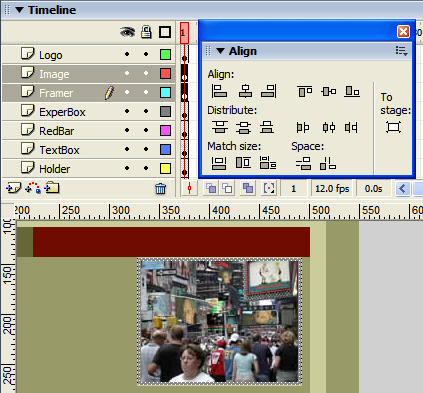
- Deselect the Align to Stage button and click the Align to Horizontal and Align to Vertical Center buttons. The image will move to the exact center of the rectangle in “Framer” layer.
Selecting a Layer does nothing more than select the objects on the layer. It is a handy way of selecting objects that may be difficult to otherwise select.
You can align objects relative to the stage rather than each other. Click the “To stage:” button and then click an alignment option.
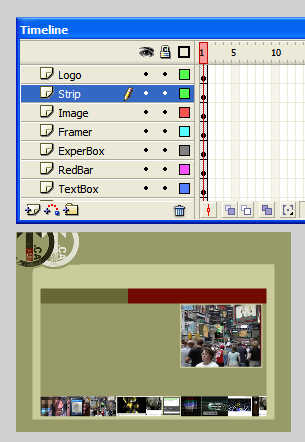
- Add a new layer named “Strip” and drag the “PicStrip” image from the Library to the layer.
- Place the image on the stage against the bottom of the Content box and align its left edge with the left edge of the Content box.
- Save the file.
No need to get “fancy” with the Align panel. If you have the “PicStrip” image butting up against the bottom of the Content box, simply set its “X” value in the Property inspector to 49. This matches the value used for the Content box.
You may have noticed that the images are already “pre-sized”. This is deliberate. Though you can resize images in Flash, you won’t change the file size of the image in the Library. For example if a 640 X 480 jpg image with a file size of 62K is imported into the library, the Flash file will increase by that amount and will stay at that file size if you scale the image by 50% on the stage. The same image scaled to 50% in Photoshop or Fireworks will weight in a 16K. When working with image in Flash get into the habit of thinking “small”.
With the images and boxes in place and positioned in Layers your interface, so far, should resemble that shown below.
 This work is licensed under a Creative Commons License.