




The Basics of ActionScript
Terminology fundamentals
Before you start writing the code there are some aspects of the terminology that may be foreign to you. In this section we introduce you to some of the more common terms used in the code examples in this course.
We’ll start with variable.
A variable is the name for a container that holds data. When you go to the food store, inevitably your purchases are placed in a plastic or paper bag. Inside this bag are cans, meat, vegetables and other items you have purchased. If anyone asks you what is in the bag the inevitable reply is, “Groceries.”. The stuff in the bag is the data and the term you just used to describe it-Groceries- is the variable. In Flash, variables hold the value of a data type. A data type is the particular information associated with variable such as a String ( “Lettuce” is a string data type because it contains a bunch of alphanumeric characters strung together – hence the data type “String” .) or a Number which is another data type. The variable’s name is “groceries” and when you create the name you are said to be “declaring the variable.
Do your sanity a favor when you declare variables and use a name that describes what the variable is. For example, myVideo, is a lot more meaningful than coolBreakDancers. If you examine the code samples throughout this book, every variable declared relates directly to the data it contains.
You use variables whenever you will be repeatedly using and/or modifying data. You assign a value to the variable so you can use it over and over in the ActionScript you will write. The interesting thing about variables is they can change. You see this when you got a sporting event. The variable named score which is a number always starts out a 0. By the end of the game that variable’s value will have changed but it is still known as score. This is an important concept because the last thing you need is to write 120 lines of code that track a score rising to 120. For example, you can create a variable that tracks the score by adding 1 to the current value of the score each time a goal is scored. This significantly reduces the amount of typing you must do and, most important of all, will keep the final size of the SWF at a manageable level.
What does a variable look like? If you were to create a variable called “groceries” to hold the value “Lettuce” you would enter:
var groceries = “Lettuce”;
You have just assigned the value “Lettuce” to the groceries variable using the “=” sign which is called an
“assignment operator”. The keyword, var, tells ActionScript that groceries is a
variable meaning variables are declared as such when var is used. The semi-colon at the end tells ActionScript
the end of the code line has been reached to go to the next line in the code.
You can also assign variables to something else. In the case of our sporting event the score variable would be:
var score = 0;
var currentScore = score +1;
All this code means is that the value of the current score is 1. This works admirably for a game in which only one point is awarded. What about games like baseball where the scores move into double digits? In this case, each time a runner crosses home plate, you simply reassess the value of score to currentScore before adding 1. Any code that uses the value for score or currentScore elsewhere in the script will be instantly updated to this new value.
Just like any language there are some rules that need to be followed when it comes to variables.
The first is each variable name must be unique. You can’t declare two variables named “groceries” or “score” ” in the same function. You can declare “score” or “groceries” in different functions, however. The second is the names are case sensitive. The variable “Groceries” is not the same as the variable “groceries”.
If, for example, you don’t see the word “Lettuce” in your movie when you test it, the odds are almost 100% that you used “Groceries”.
There is more. Variables can contain only numbers letters and underscores (_) and they can not begin with a number or an underscore.
var score2 = 0
is legal.
var 2score = 0
is illegal.
Variables can not use any of the keywords, names, objects or properties reserved for the use of ActionScript. These words are reserved words and when encountered by ActionScript they are treated just like the keyword or action resulting in broken code. Variables can have a name in which a keyword is present, such as “newYork” or “movieClipArray”.
The next term is keyword.
Keywords, in ActionScript are reserved words that are used to perform a specific task. A complete listing of the ActionScript keywords is contained in the Flash Help panel. Open it by selecting Help>Flash Help or by pressing the F1 key. When the panel opens enter “keywords into the search criteria. Each keyword has a specific meaning: var is used to create a variable.
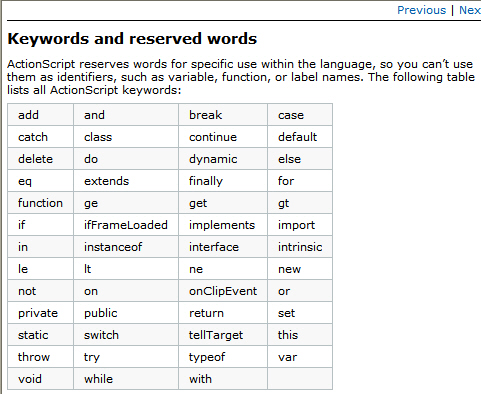
Another term you will encounter on a regular basis is “Boolean Value”.
When you were in school you actually did tests based on Boolean values. These were the infamous True/False tests you wrote. The answer is an absolute value such as, “True or False. A breed of dog is poodle?” When you start writing ActionScript you won’t be encountering poodles but you will be encountering absolute values.
If you draw a circle on the stage you can see it. That means it is absolutely visible. What if you don’t want the user to see it? You could set the visibility of the circle to false when the movie starts and to true when the user clicks a button.
You will also use “conditional statements” on a regular basis.
Think of one of these as being a negotiating position. You ask the boss for a raise by saying, “Boss, if I raise sales by 5% then I expect a 5% raise”. The boss relies, “If you want a raise then sales will have to increase by 8%.” Notice how the negotiation is phrased: “If this then this.” The conditions are “raise” and “percentage”. The other thing you will notice is you can rephrase this negotiation in Boolean terms:
if a sales increase of 5% is true then my salary increases by 5%
The power of these statements lies in the fact that you can use both the true and false condition to initiate a series of different actions. For example, here’s a script that checks for a proper password. If the password is wrong it sends the playback head to a frame labeled “Rejection”. If it is correct, it goes to a frame labeled “Acceptance”:
if (password == null) {
gotandStop(“Rejection”);
} else if (password == “Tom”){
gotoAndPlay (“Acceptance”);
}
The final term is “function”.
You are going to regularly encounter functions as you move through this book and, for that matter, many other Flash books out there. Functions can be thought of as “ a group of statements that can be referred to by name”. Functions can return values and can have parameters passed into them. Parameters, sometimes referred to as arguments, allow you to pass a static value, variable or a reference to an object into a function. Once they are in the function you can manipulate them at will.
Parameters are the values that get put between the “()” in a line of code. For example, a common movie clip method is:
gotoAndPlay();
This is a common method of moving the playback head from one frame to another in a movie clip. As we have written it, ActionScript doesn’t have a clue where it is to go to and play because we haven’t told it where to go. It needs a parameter such as frame 3. Thus the method would appear as :
gotoAndPlay(3) ;
When you create a custom function, the need for parameters will depend on whether the function requires any further information in order to complete its task.
The power of a function lies in the fact it only needs to be written once but can be used an infinite number of times. Let’s assume you have a button that when clicked increases the scale amount of a movie clip, named myClip, by 10% The code to do this would be:
on(release) {
myClip._xscale = myClip._xscale +10;
myClip._yscale = myClip._yscale +10;
}
This is ideal where there is only one button used to scale an object. What if you have five buttons that will scale the object? Are you prepared to write the same code five times? It is a waste of time and inefficient. The solution is to write a function, let’s call it scaleUp, that does the scaling and is can be used by any button on the stage. The syntax would be:
function scaleUp() {
myClip._xscale = myClip._xscale +10;
myClip._yscale = myClip._yscale +10;
}
The code attached to each button would “call” the function in this manner:
on(release) {
_root.scaleUp();
}
In this case when the button is pressed- on(release) - go to the main time line - _root- and execute scaleUp(). How does it know to scale the movie clip named myClip? It’s name- called an instance name- is used in the function. Only movie clips with the instance name of myClip on the main timeline will scale up by 10%.
So much for the theory. Let’s dig into creating ActionScript.
 This work is licensed under a Creative Commons License.